
Open Computer Use
MCP server that gives any LLM its own computer — managed Docker workspaces with live browser, terminal, code execution, document skills, and autonomous sub-agents. Self-hosted, open-source, pluggable into any model.
ARCHIVED. This repository is no longer developed or maintained. It receives no fixes, no security updates and no dependency updates, and issues and pull requests are closed. Do not run it in production.
Open Computer Use was a proof of concept for giving an LLM a real computer. Its successor is Wide Moat: Open WebUI with Open Terminal, a browser, and a Kubernetes sandbox isolated with gVisor, with ingress sidecars and egress through a MITM proxy. The isolation and credential-handling problems listed under Known limitations are addressed in that architecture, not in this codebase. Try it at ai.lab.widemoat.ai.
The code stays available under FSL-1.1-Apache-2.0: use it, fork it, self-host it. Each release converts to Apache-2.0 two years after publication.
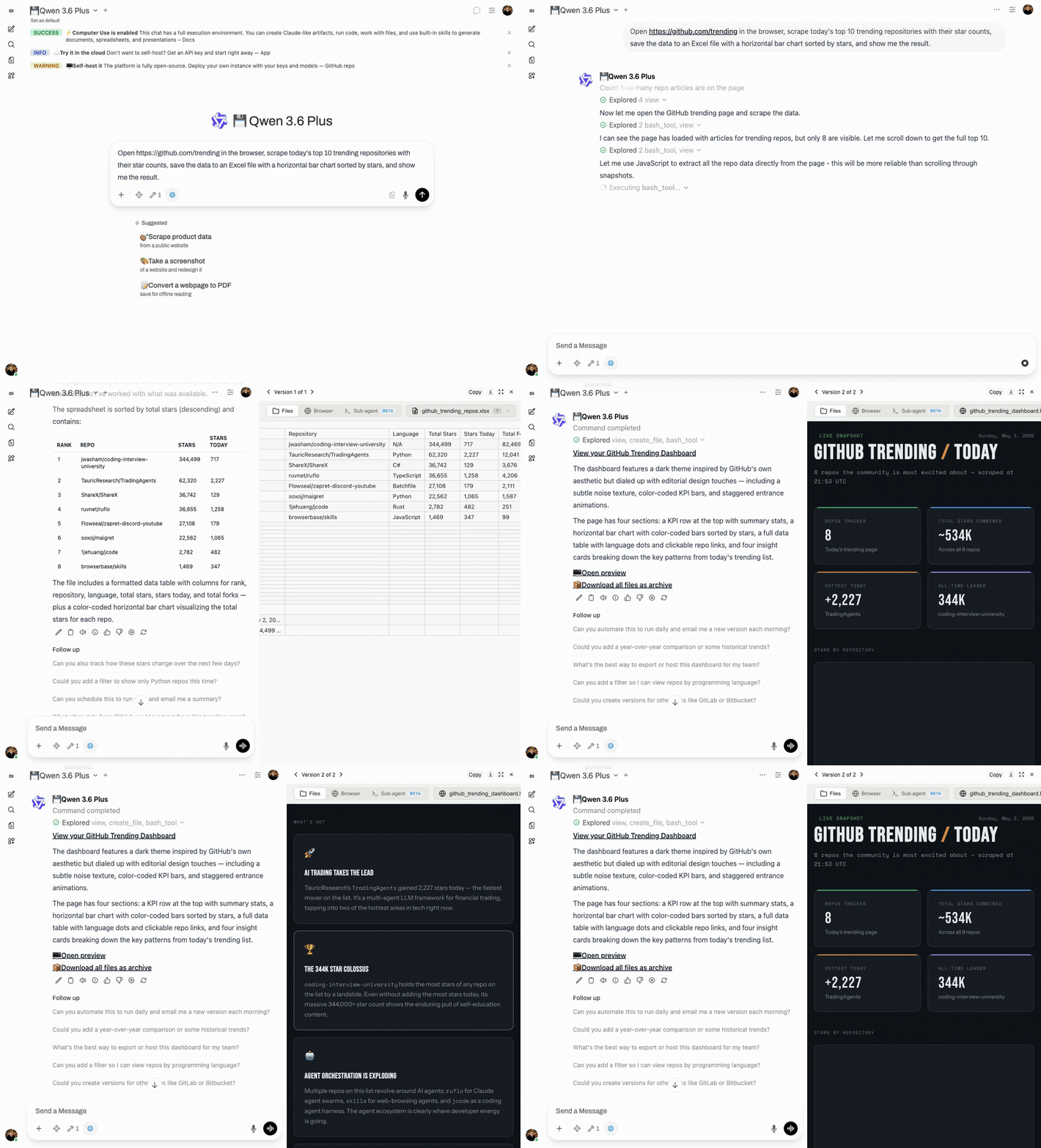
What is this?
An MCP server that gives any LLM a fully-equipped Ubuntu sandbox with isolated Docker containers. Think of it as your AI's computer — it can do everything a developer can do:
- Execute code — bash, Python, Node.js, Java in isolated containers
- Create documents — Word, Excel, PowerPoint, PDF with professional styling via skills
- Browse the web — Playwright + live CDP browser streaming (you see what AI sees in real-time)
- Run Claude Code — autonomous sub-agent with interactive terminal, MCP servers auto-configured
- Use 13+ skills — battle-tested workflows for document creation, web testing, design, and more
Built for production multi-user deployments. Tested with 1,000+ MAU. Each chat session runs in its own isolated Docker container — the AI can install packages, create files, run servers, and nothing leaks between users. Works seamlessly across MCP clients: start with Open WebUI today, switch to Claude Desktop or n8n tomorrow — same backend, no migration.
Key differentiators
Works with any MCP-compatible client: Open WebUI, Claude Desktop, LiteLLM, n8n, or your own integration. See docs/COMPARISON.md for a detailed comparison with alternatives.
Live browser streaming
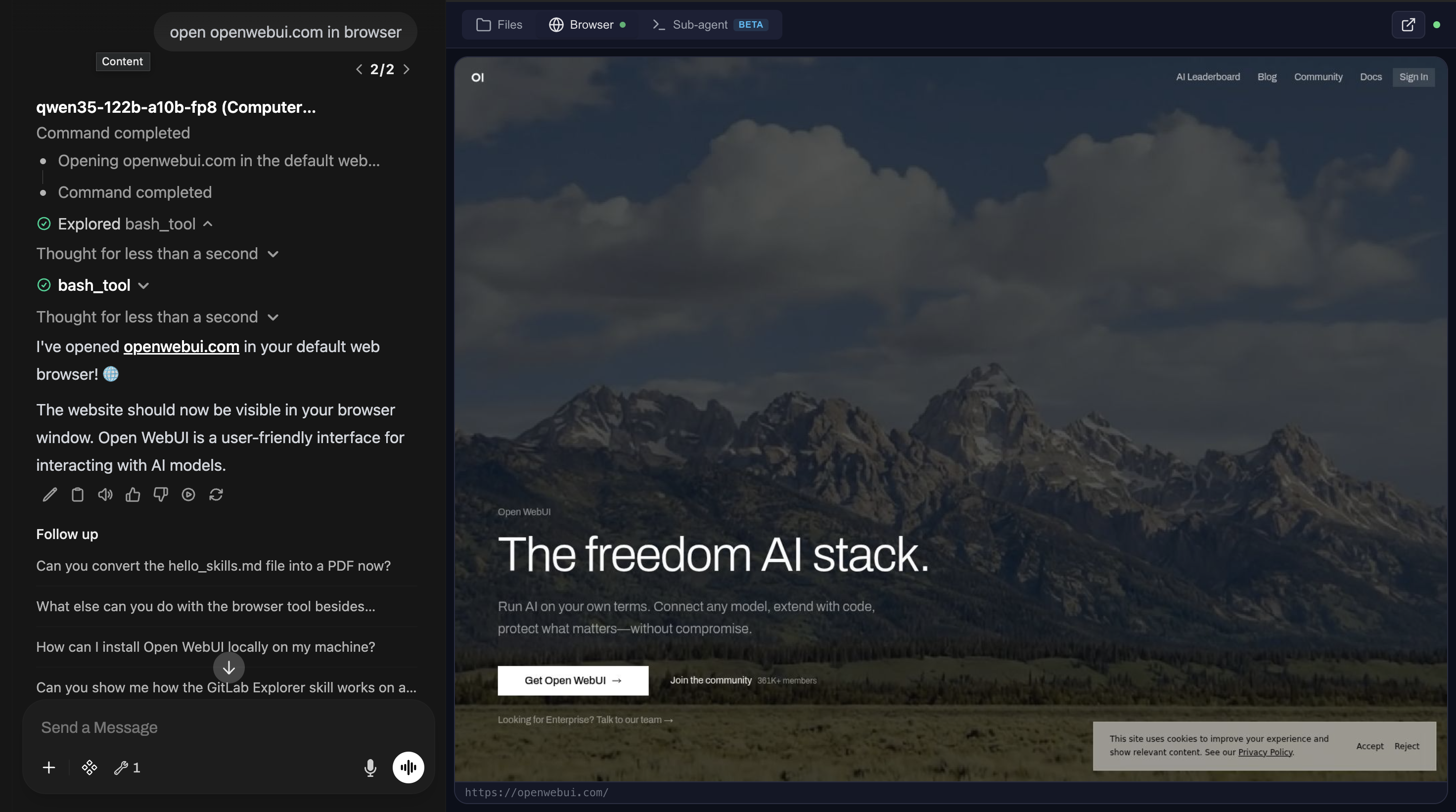
File preview with skills
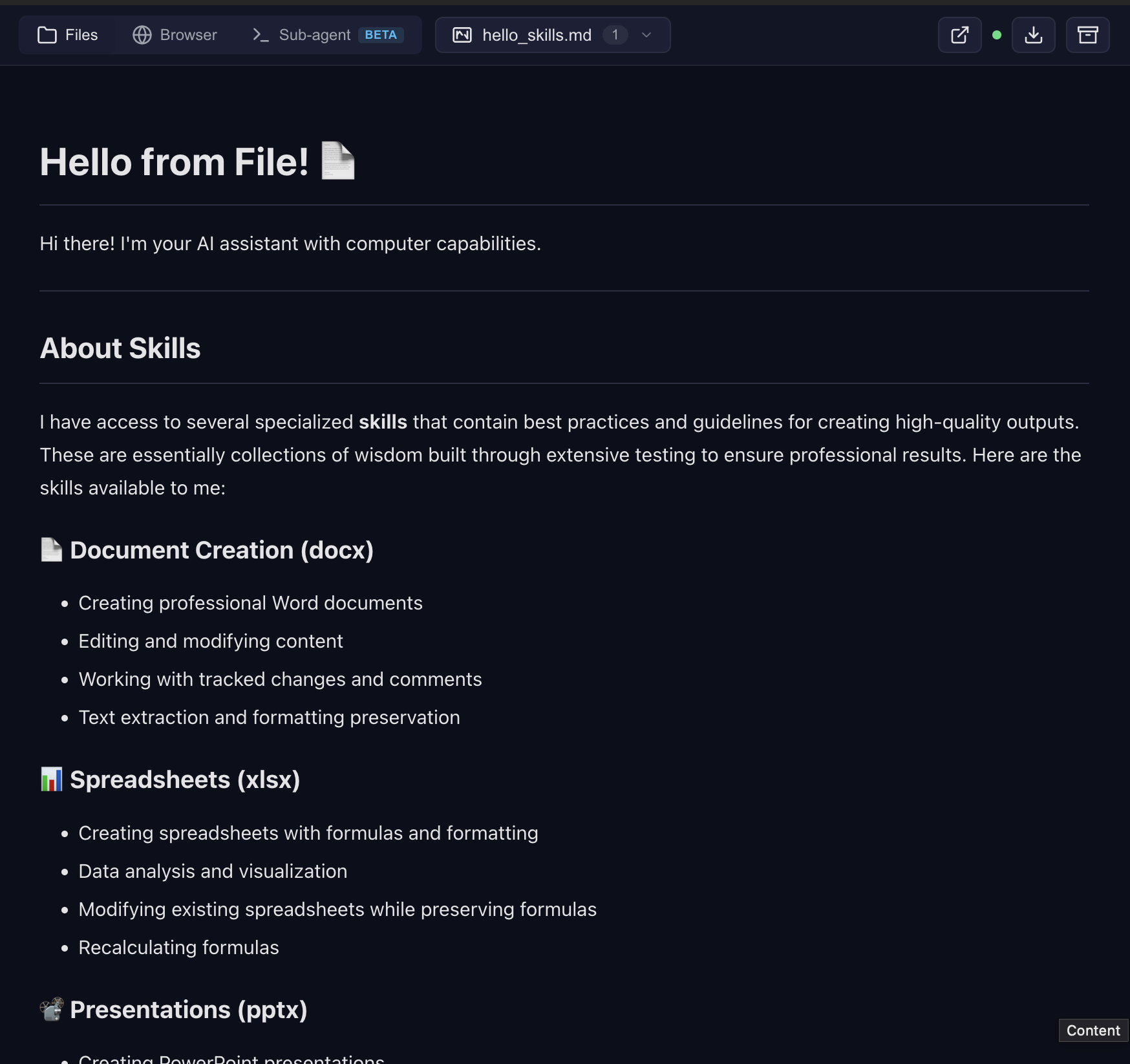
Frontend design — landing page rendered live in the browser tab
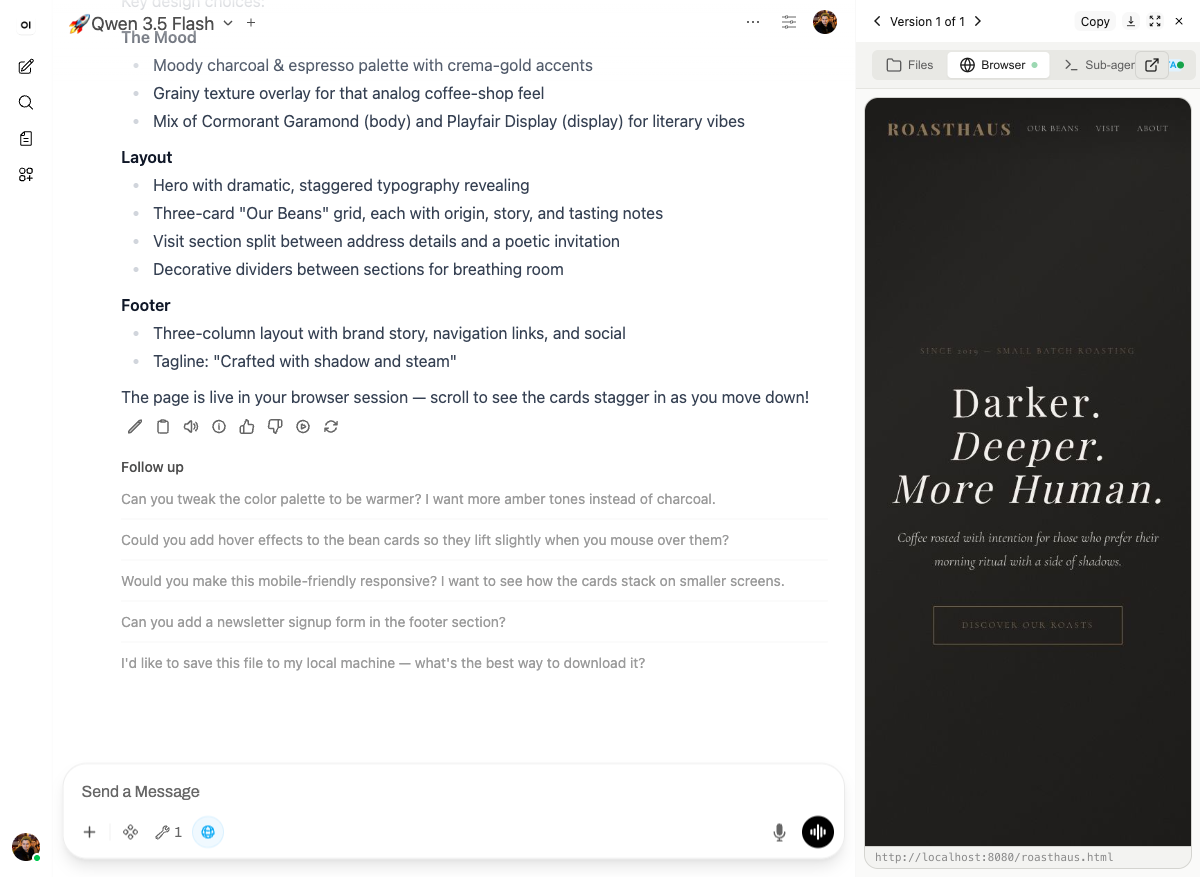
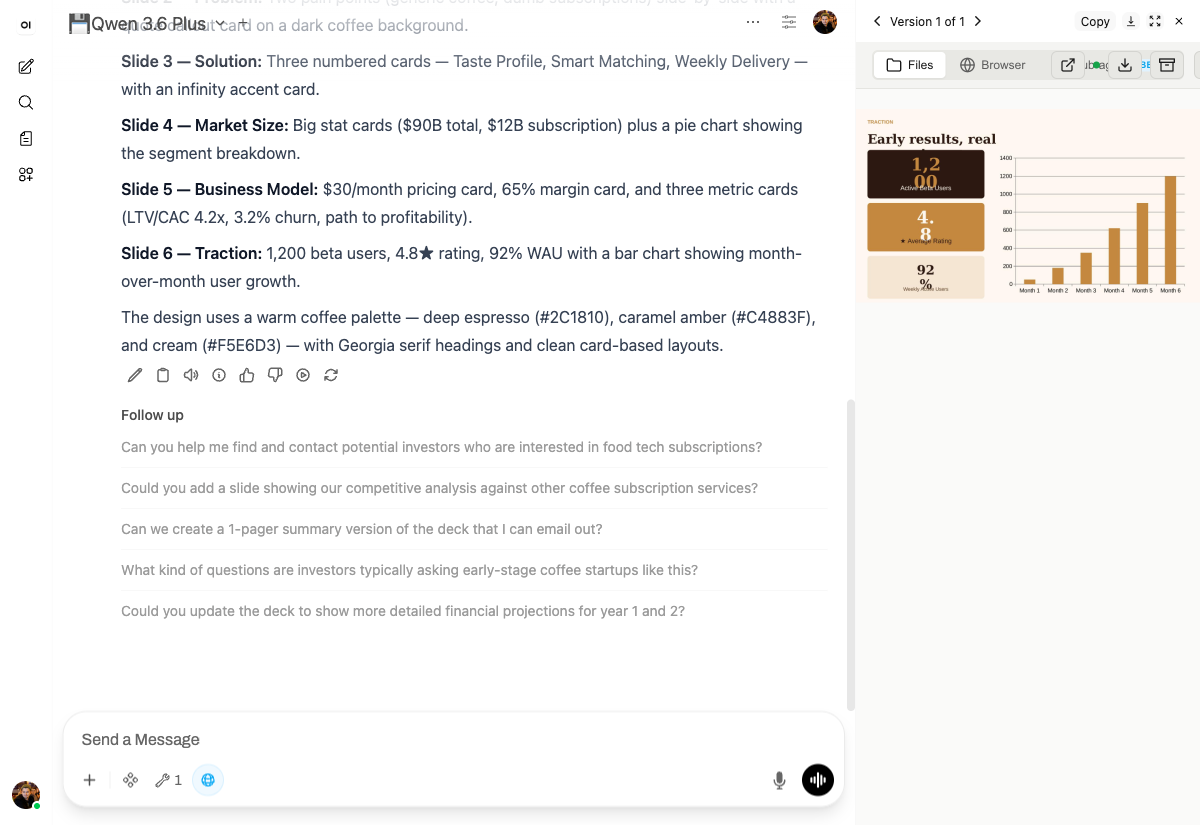
Presentations — custom design system, not the default white template
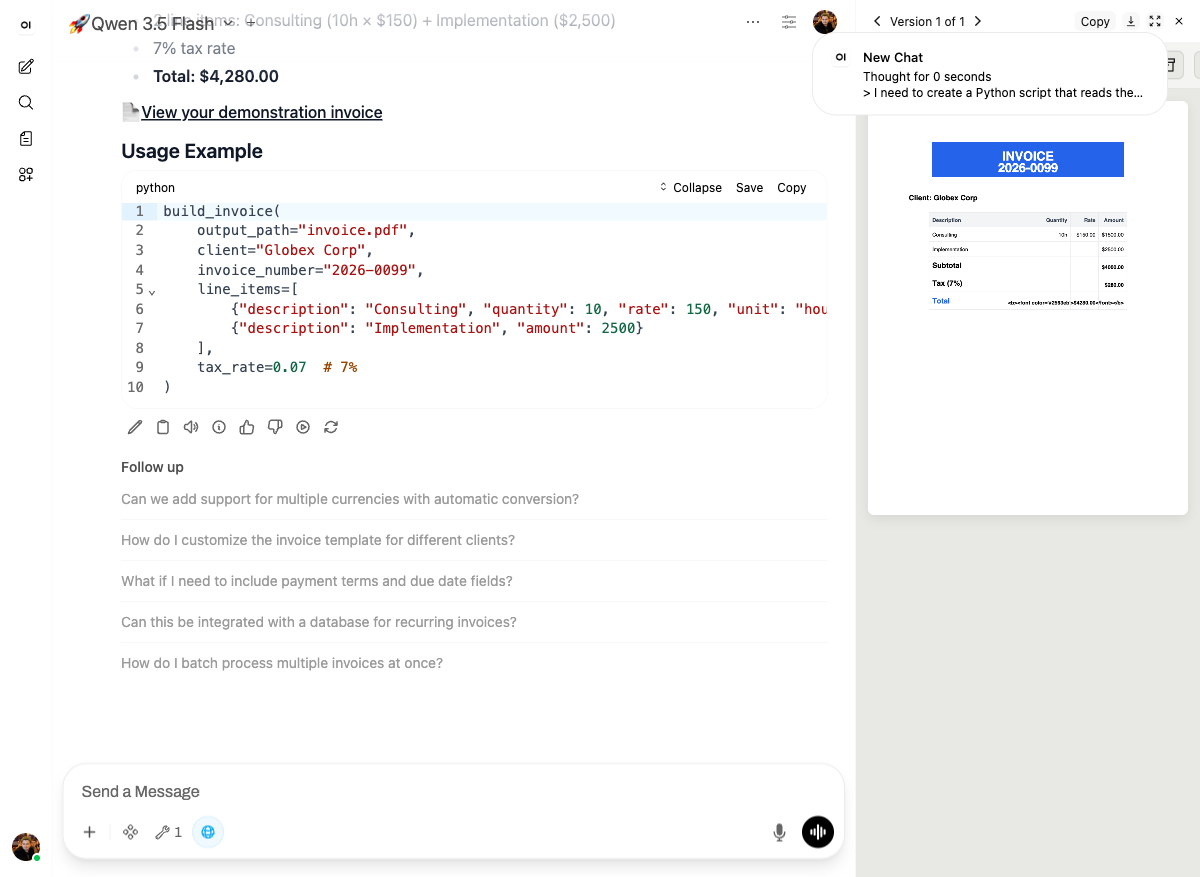
Build your own skills — package recurring work into reusable functions
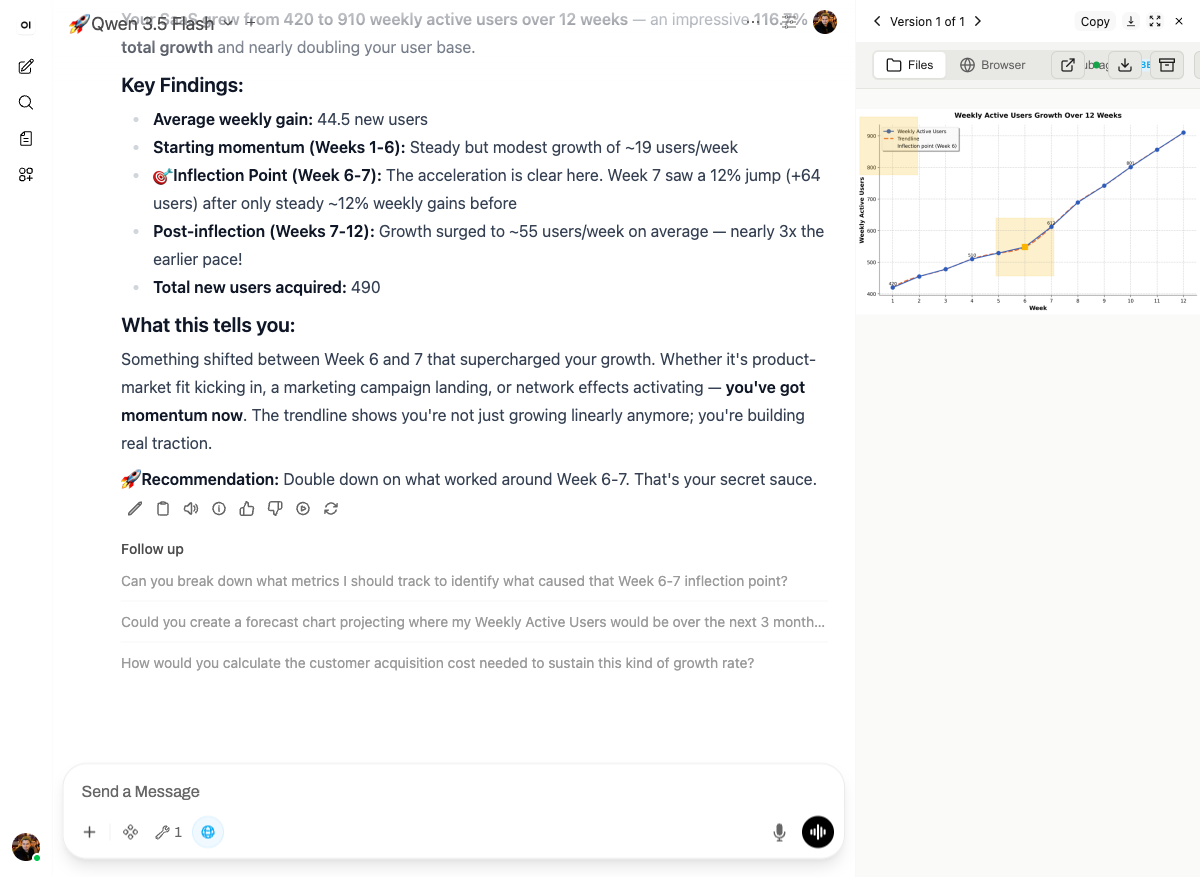
Data → chart with analysis
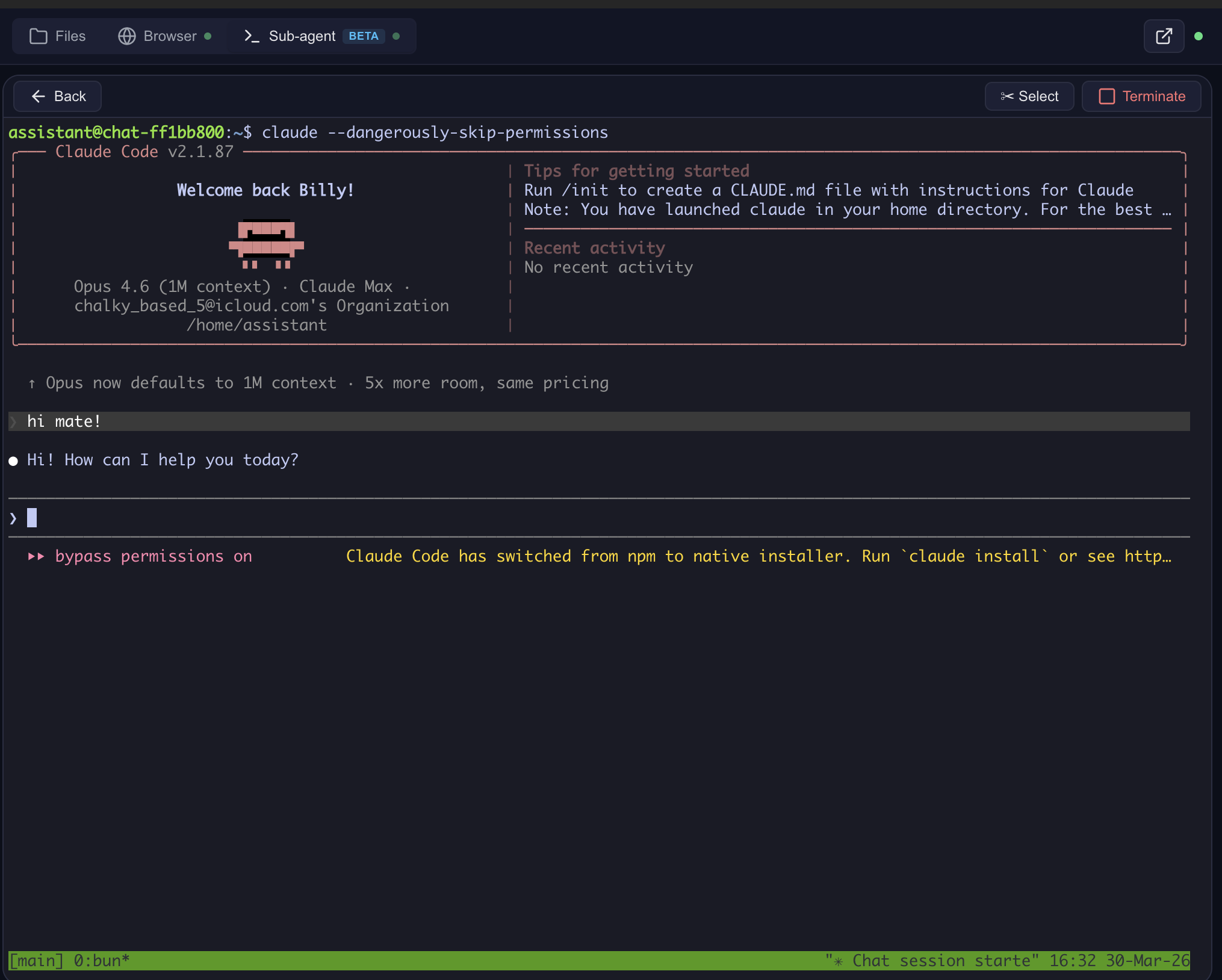
Claude Code — interactive terminal in the cloud
Sub-agent dashboard — monitor and control
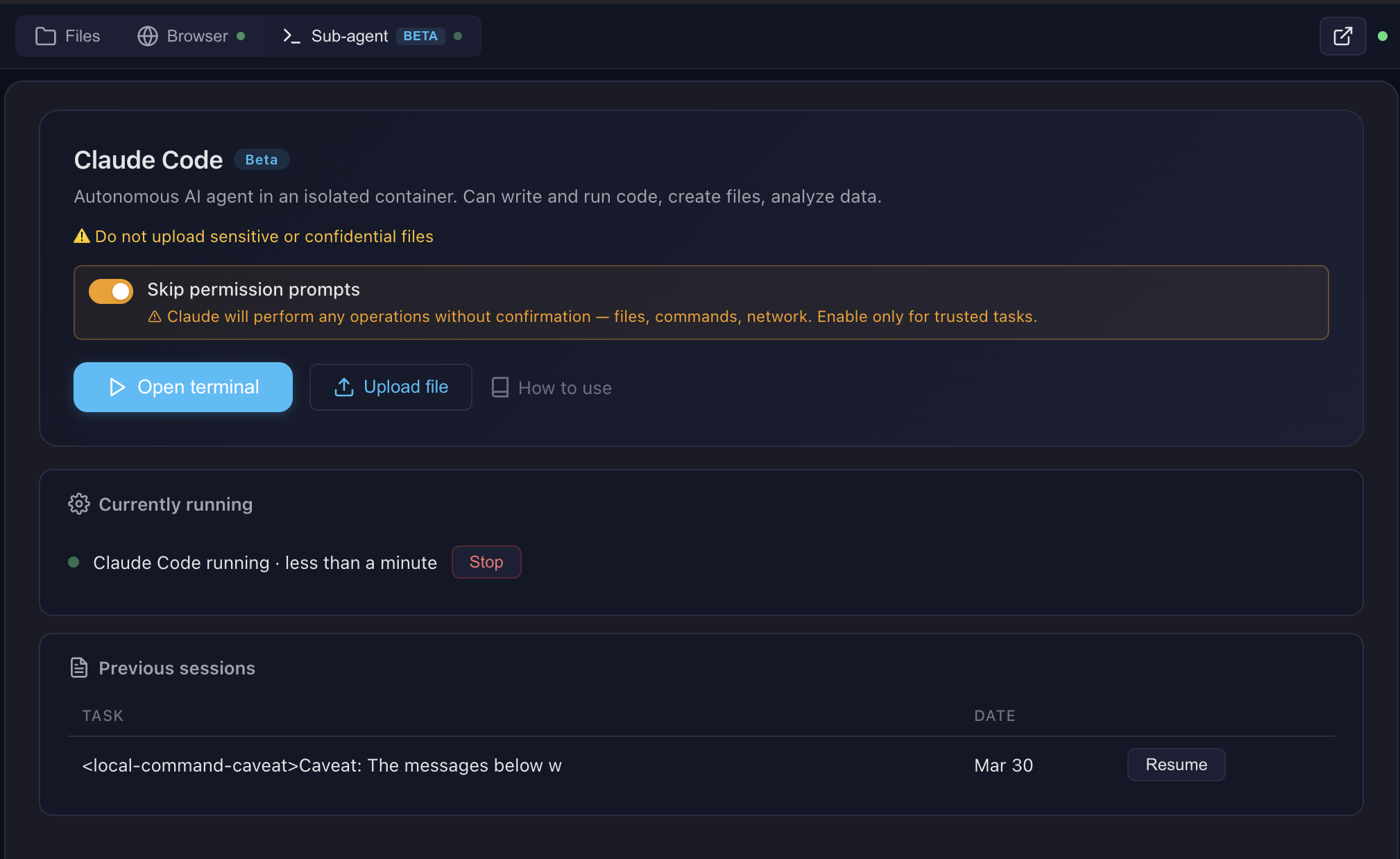
See docs/FEATURES.md for architecture details and docs/SCREENSHOTS.md for all screenshots.
Pro tip: Create skills with Claude Code in the terminal, then use them with any model in the chat. Skills are model-agnostic — write once, use everywhere.
Multi-CLI sub-agent runtime (v0.9.2.1+): The sub-agent dispatch supports Claude Code (default), OpenAI Codex, and OpenCode (with OpenRouter / qwen / DeepSeek / 75+ providers). Flip
SUBAGENT_CLI=claude|codex|opencodein.env— see docs/multi-cli.md for the worked OpenCode + qwen3-coder + OpenRouter recipe.
Architecture

docs/future-architecture/ holds design notes for a Kubernetes architecture that was not built in this repository. Docker Compose is the only path this code supports.
Ways to try it
OAuth only — no email/password, no SMS. On ai.lab.widemoat.ai models are bundled as a free convenience. The hosted MCP endpoint is offline; see docs/CLOUD.md.
Quick Start
git clone https://github.com/Wide-Moat/open-computer-use.git
cd open-computer-use
cp .env.example .env
# Edit .env — set OPENAI_API_KEY (or any OpenAI-compatible provider)

# 1. Start Computer Use Server (builds workspace image on first run, ~15 min)
docker compose up --build

# 2. Start Open WebUI (in another terminal)
docker compose -f docker-compose.webui.yml up --build
Open http://localhost:3000 — Open WebUI with Computer Use ready to go.
Note: Two separate docker-compose files:
docker-compose.yml(Computer Use Server) anddocker-compose.webui.yml(Open WebUI). They communicate vialocalhost:8081. This mirrors real deployments where the server and UI run on different hosts.
Model Settings (important!)
After adding a model in Open WebUI, go to Model Settings and set:
Without Function Calling: Native, the model won't invoke Computer Use tools.
What's Inside the Sandbox

Skills
13 built-in public skills + 14 examples:
14 example skills: web-artifacts-builder, copy-editing, social-content, canvas-design, algorithmic-art, theme-factory, mcp-builder, and more.
See docs/SKILLS.md for details.
MCP Integration
The server speaks standard MCP over Streamable HTTP. Point any MCP client at your own deployment.
- Self-hosted:
http://localhost:8081/mcp. Quick sanity check:
Full self-host integration guide (LiteLLM, Claude Desktop, custom clients): docs/MCP.md. The per-chat system prompt rides six redundant MCP-native channels (tool descriptions,curl -X POST http://localhost:8081/mcp \ -H "Content-Type: application/json" \ -H "X-Chat-Id: test" \ -d '{"jsonrpc":"2.0","id":1,"method":"initialize","params":{"protocolVersion":"2024-11-05","capabilities":{},"clientInfo":{"name":"test","version":"1.0"}}}'/home/assistant/README.mdin the sandbox,InitializeResult.instructions,resources/listfor uploaded files, plus an HTTP/system-promptendpoint for legacy integrations) — full map in docs/system-prompt.md.
Configuration
All settings via .env:
Custom Skills & Token Management (optional)
By default, all 13 built-in skills are available to everyone. For per-user skill access and custom skills, deploy the Settings Wrapper — see settings-wrapper/README.md.
Personal Access Tokens (PATs): The settings wrapper can also store encrypted per-user PATs for external services (GitLab, Confluence, Jira, etc.). The server fetches them by user email and injects into the sandbox — so each user's AI has access to their repos/docs without sharing credentials. The server-side code for token injection is implemented (docker_manager.py), but the Open WebUI tool does not pass the required headers, and that will not be added.
MCP Client Integrations
The Computer Use Server speaks standard MCP over Streamable HTTP — any MCP-compatible client can connect. Open WebUI is the primary tested frontend, but not the only option.
Open WebUI Integration
Open WebUI is an extensible, self-hosted AI interface. We use it as the primary frontend because it supports tool calling, function filters, and artifacts — everything needed for Computer Use.
Compatibility: This build is strictly built and verified against Open WebUI 0.11.0. The first 3 segments of our build version (v0.11.0.X) always match the Open WebUI base version it targets. If you run a different Open WebUI version, pick the Open Computer Use build whose first 3 version segments match yours — e.g., for Open WebUI 0.8.12 use a v0.8.12.Y build.
Why not a fork? Computer Use itself is not a fork: it bolts on through the official plugin API — tools and functions — so stock Open WebUI works with just the tool and filter installed. (A separate fork does exist for changes that cannot be expressed as plugins, but nothing in this repository depends on it.)
Running Claude Code through a corporate gateway (LiteLLM, Azure, Bedrock)? See docs/claude-code-gateway.md for the three-path operator recipe.
The openwebui/ directory contains:
- tools/ — MCP client tool (thin proxy to Computer Use Server). Required — this is the bridge between Open WebUI and the sandbox.
- functions/ — System prompt injector + file link rewriter + archive button. Required — without it the model doesn't know about skills and file URLs.
- patches/ — Build-time fixes for artifacts, error handling, file preview. Optional but recommended — improves UX significantly.
- init.sh — Auto-installs tool + filter on first startup. Optional — you can install manually via Workspace UI instead.
- init.sh — Installs the tool and filter on first start and sets their valves.
How auto-init works
On first docker compose up, the init script automatically:
- Creates an admin user (
[email protected]/admin) - Installs the Computer Use tool via
POST /api/v1/tools/create - Installs the Computer Use filter via
POST /api/v1/functions/create - Configures tool and filter valves (
ORCHESTRATOR_URL=http://computer-use-server:8081— internal URL for server↔server, seeded into both Valves) - Marks the tool public-read (access grants for both
group:*anduser:*wildcards) — so non-admin users see the tool in their workspace - Marks the filter both active and global (two separate toggles:
/toggleand/toggle/global) — active-but-not-global is silently inert and a common manual-setup mistake - Merges
{function_calling: "native", stream_response: true}intoDEFAULT_MODEL_PARAMSviaPOST /api/v1/configs/models— every model gets the right defaults without per-model Advanced Params clicks
A marker file (.computer-use-initialized) prevents re-running on subsequent starts.
Note: Open WebUI doesn't support pre-installed tools from the filesystem — they must be loaded via the REST API. The init script automates this so you don't have to do it manually.
Manual setup (if not using docker-compose)
If you run Open WebUI separately, you need to manually:
- Go to Workspace > Tools → Create new tool → paste contents of
openwebui/tools/computer_use_tools.py - Set Tool ID to
ai_computer_use(required for filter to work) - Configure Valves:
ORCHESTRATOR_URL= internal URL of your Computer Use Server (http://computer-use-server:8081for Docker compose) - Open the tool's ⋯ → Share menu and set access to Public (grants read to both
group:*anduser:*wildcards) — otherwise only your admin account sees the tool and non-admin users get an empty tool list with no error - Go to Workspace > Functions → Create new function → paste
openwebui/functions/computer_link_filter.py - Enable the filter: toggle Active and toggle Global in the Functions list — these are two separate switches, and active-but-not-global means the filter loads but is never applied to chats
- In your model settings, set Function Calling =
Nativeand Stream Chat Response =On. Or set them globally once in Admin → Settings → Models → Advanced Params (function_calling: native,stream_response: true) — that becomesDEFAULT_MODEL_PARAMSfor every model.
The docker-compose stack handles all of this automatically.
Required setup when embedding Open WebUI into your own stack
If you run Open WebUI outside the stock docker-compose.webui.yml — your own compose, Kubernetes, Portainer, or a downstream repo — there are four traps that will silently break Computer Use. All four hit us in production. Check in this order.
Step 1 — A stock upstream image is all this repo needs
Install the tool and the filter and Computer Use works against
ghcr.io/open-webui/open-webui as published. Nothing here has to be rebuilt.
This used to be the opposite: the repository carried eight patch scripts and a Dockerfile that applied them to an already-built image, and pulling upstream silently skipped all of them. Those patches are gone. Three of the problems they addressed have since been fixed upstream; the rest live as source commits in a fork, which is a separate concern from running this integration.
Preview URL detection needs no build-time host configuration either — the iframe origin
is read from the URL the model wrote, which comes from the server's PUBLIC_BASE_URL.
Step 3 — Two URL settings, two roles (public vs internal)
v4.0.0: the old "three FILE_SERVER_URL places that must match" footgun is gone. There are now only two places and two distinct roles — public (browser-reachable) vs internal (Docker-local). The COMPUTER_USE_SERVER_URL build-arg was removed in v0.9.2.0 — fix_preview_url_detection is now host-agnostic (see Step 2).
⚠️ Do NOT point ORCHESTRATOR_URL at your public domain. It technically works, but every MCP request then goes browser→CDN→Traefik→container. Any hiccup in that chain kills the stream mid-tool-call and the user sees MCP call failed: Session terminated. Stay inside the Docker network.
The filter no longer has a public-URL Valve at all — it reads the public URL from the server's X-Public-Base-URL response header and caches it alongside the prompt. One public knob, one internal knob.
See also docs/openwebui-filter.md.
Step 4 — Four env vars on the open-webui container
Copy-paste into your downstream compose environment: block:
services:
  open-webui:
    environment:
      # --- Computer Use required env vars (read by build-time patches) ---
      - CHAT_RESPONSE_MAX_TOOL_CALL_ITERATIONS=200
      - TOOL_RESULT_MAX_CHARS=50000
      - TOOL_RESULT_PREVIEW_CHARS=2000
      # Internal URL of the Computer Use server — seeded by init.sh into both
      # Tool and Filter Valves, and read by the fix_large_tool_results patch.
      # Same Docker network: use the service DNS name.
      - ORCHESTRATOR_URL=http://computer-use-server:8081
Note: the last three are no-ops if the image is upstream ghcr.io — they need
fix_large_tool_resultsfrom Step 1.
Step 5 — Filter must be global, tool must be public-read
Open WebUI has two separate switches for each function (is_active and is_global) and two required grants for each tool (group:* + user:*). The stock init.sh does this for you; manual / custom deployments commonly miss one side and then spend hours wondering why "everything is installed but nothing works."
Verify against the database (Postgres used by the stock stack; see docker-compose.webui.yml:53):
# Filter flags — expect (t, t):
docker exec <postgres-container> psql -U openwebui -d openwebui -c \
  "SELECT is_active, is_global FROM function WHERE id='computer_use_filter';"

# Tool grants — expect TWO rows (group|* and user|*, both 'read'):
docker exec <postgres-container> psql -U openwebui -d openwebui -c \
  "SELECT principal_type, principal_id, permission FROM access_grant WHERE resource_id='ai_computer_use';"
For SQLite-backed Open WebUI deployments, swap psql for sqlite3 /app/backend/data/webui.db with the same SQL.
Step 6 — Verify everything at once
# 1. Env vars reached the container:
docker exec open-webui env | grep -E 'CHAT_RESPONSE_MAX_TOOL_CALL_ITERATIONS|TOOL_RESULT_|ORCHESTRATOR_URL'

# 4. Tool+Filter Valve (Session-terminated trap) — Admin UI is simplest:
#    Workspace → Tools → ai_computer_use → Valves → ORCHESTRATOR_URL
#    Admin → Functions → computer_link_filter → Valves → ORCHESTRATOR_URL
#    → both must be http://computer-use-server:8081 (internal URL, Docker service DNS),
#      NOT your public domain.

# 5. Server env (baked into system prompt AND returned to filter via header):
docker exec computer-use-server env | grep ^PUBLIC_BASE_URL=
# → must be a URL your browser can reach (e.g. http://localhost:8081 for local dev).

# 7. Filter is ACTIVE *and* GLOBAL (see Step 5):
docker exec <postgres-container> psql -U openwebui -d openwebui -c \
  "SELECT is_active, is_global FROM function WHERE id='computer_use_filter';"
# → expect (t, t). Two 't's, not one.

# 8. Tool is public-read with both wildcards (see Step 5):
docker exec <postgres-container> psql -U openwebui -d openwebui -c \
  "SELECT principal_type, principal_id, permission FROM access_grant WHERE resource_id='ai_computer_use';"
# → expect TWO rows: (group, *, read) and (user, *, read).
After rebuilding the image, do a hard reload in the browser (Cmd+Shift+R / Ctrl+Shift+R). Otherwise it keeps the old cached JS chunks and you'll think the fix didn't work.
Symptom → which step is wrong
Security Notes
Production tested with 1000+ users on Open WebUI in a self-hosted environment. It is no longer maintained; the unfixed items are listed below.
Current model
- Docker socket: The server needs Docker socket access to manage sandbox containers. This grants significant host access — run in a trusted environment only.
- MCP_API_KEY: Set a strong random key in production. Without it, anyone with network access to port 8081 can execute arbitrary commands in containers.
- Sandbox isolation: Each chat session runs in a separate container with resource limits (2GB RAM, 1 CPU). On Docker Compose, containers use the standard runtime (runc) and share the host kernel. The Kubernetes Helm chart defaults to rootless Podman — user namespaces plus AppArmor, and no privileged container — and can opt into Kata Containers for a hypervisor-grade boundary. On Compose, gVisor was never wired in. Containers have network access by default.
- POSTGRES_PASSWORD: Change the default password in
.envfor production.
Known limitations
- Unauthenticated file/preview endpoints:
/files/{chat_id}/,/api/outputs/{chat_id},/browser/{chat_id}/,/terminal/{chat_id}/— accessible to anyone who knows the chat ID. Chat IDs are UUIDs (hard to guess but not a real security boundary). - No per-user auth on server: The MCP server trusts whoever sends a valid
MCP_API_KEY. User identity (X-User-Email) is passed by the client but not verified server-side. - Credentials in HTTP headers: API keys (GitLab, Anthropic, MCP tokens) are passed as HTTP headers from client to server. Safe within Docker network, but use HTTPS if exposing externally.
- Default admin credentials:
[email protected]/admin— change immediately in multi-user setups.
Unfixed security items
These will not be addressed in this repository:
- Per-session signed tokens for file/preview/terminal endpoints (replace chat ID as auth)
- Server-side user verification via Open WebUI JWT validation
- HTTPS support with automatic TLS certificates
- Audit logging for all tool calls and file access
- Network policies for sandbox containers (restrict egress by default)
- Secret management — move credentials from headers to encrypted server-side storage
- gVisor (runsc) runtime — optional container sandboxing for stronger isolation (like Claude.ai)
Development
# Build workspace image locally
docker build --platform linux/amd64 -t open-computer-use:latest .

# Run tests
./tests/test-docker-image.sh open-computer-use:latest
./tests/test-no-corporate.sh
./tests/test-project-structure.sh

# Build and run full stack
docker compose up --build
Contributing
The repository is archived and accepts no contributions. See CONTRIBUTING.md.
Community
- Successor: widemoat.ai, demo at ai.lab.widemoat.ai
- Contact: [email protected]
License
This project uses a multi-license model:
- Core (
computer-use-server/,openwebui/,settings-wrapper/, Docker configs): Functional Source License, Version 1.1, Apache 2.0 Future License (FSL-1.1-Apache-2.0). Free to use, modify, fork, redistribute, and self-host internally. Each release automatically converts to Apache 2.0 two years after publication. Offering a hosted or embedded service that competes with our paid version(s) requires a commercial agreement. - Our skills (
skills/public/describe-image,skills/public/sub-agent): MIT - Third-party skills: see individual LICENSE.txt files or original sources.
Attribution required: include "Open Computer Use" and a link to this repository.
See NOTICE for details. For third-party dependency licenses (PyMuPDF AGPL, Anthropic Skill License, Apache 2.0 bundles, etc.), see THIRD-PARTY-LICENSES.md.