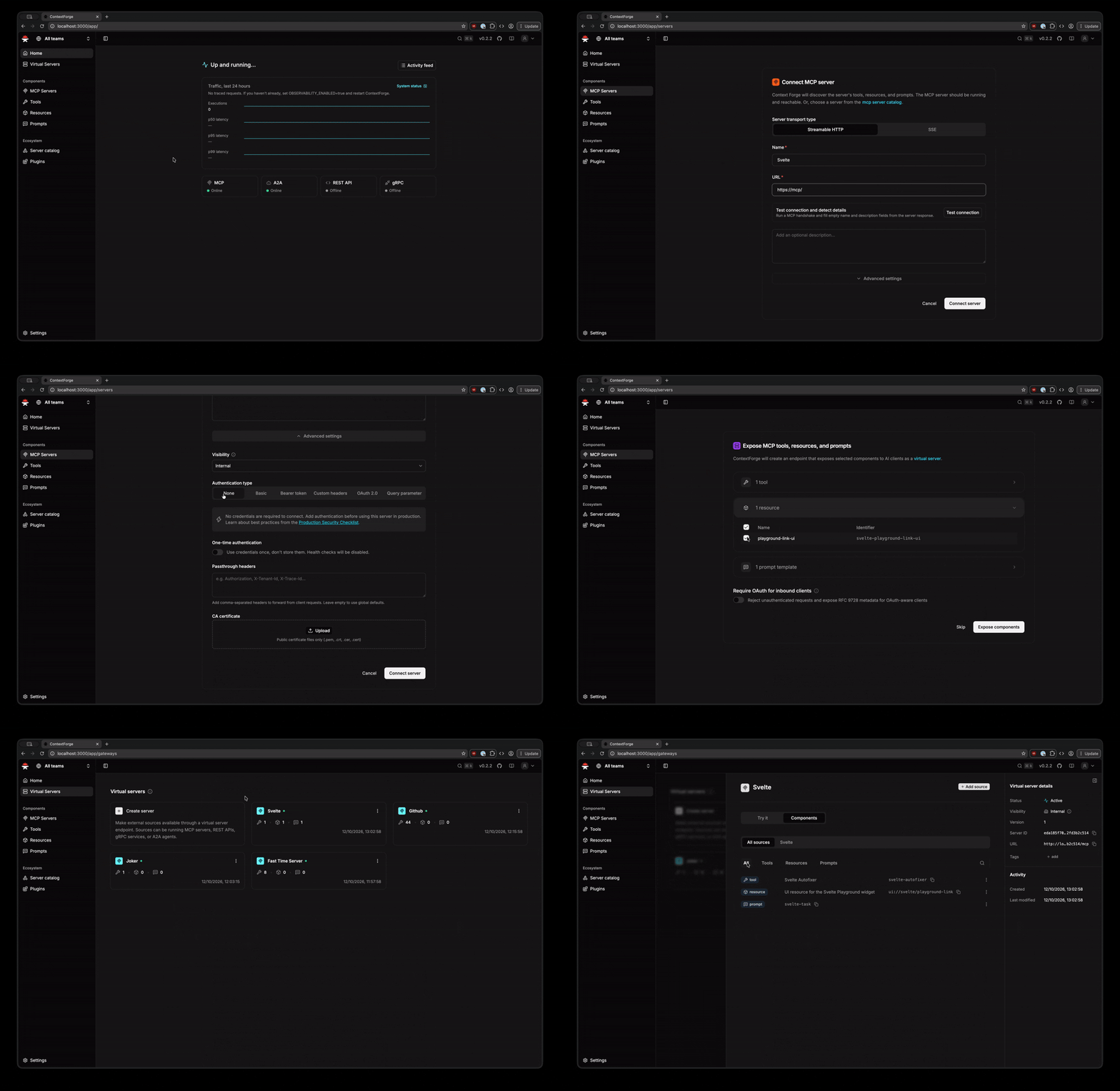
An AI Gateway, registry, and proxy that sits in front of any MCP, A2A, or REST/gRPC APIs, exposing a unified endpoint with centralized discovery, guardrails and management. Optimizes Agent & Tool calling, and supports plugins.
Tools
Tools
No tool list yet. Remote servers get one after the first health check.
FAQ
An AI Gateway, registry, and proxy that sits in front of any MCP, A2A, or REST/gRPC APIs, exposing a unified endpoint with centralized discovery, guardrails and management. Optimizes Agent & Tool call
Copy the stdio config for Cursor, Claude Desktop, Claude Code, or VS Code on this page. It uses the publisher's install, not a PlugMCP proxy.
Does MCP Context Forge need an API key?
No required environment variable is listed on this record.
What transport does MCP Context Forge use?
MCP Context Forge runs locally over stdio.
When was MCP Context Forge last checked?
Last checked 2026-11-08. An AI Gateway, registry, and proxy that sits in front of any MCP, A2A, or REST/gRPC APIs, exposing a unified endpoint with centralized discovery, guardrails and management. Optimizes Agent & Tool calling, and supports plugins.
# ContextForge
> An open source registry and proxy that federates MCP, A2A, and REST/gRPC APIs with centralized governance, discovery, and observability. Optimizes Agent &
From the publisher
Documentation
ContextForge
An open source registry and proxy that federates MCP, A2A, and REST/gRPC APIs with centralized governance, discovery, and observability. Optimizes Agent & Tool calling, and supports plugins.
ContextForge is an open source registry and proxy that federates tools, agents, and APIs into one clean endpoint for your AI clients. It provides centralized governance, discovery, and observability across your AI infrastructure:
Key features
01. An AI Gateway, registry, and proxy that sits in front of any MCP, A2A, or REST/gRPC APIs, exposing a unified endpoint with centralized discovery, guardrails and management
02. Optimizes Agent & Tool calling, and supports plugins
03. # ContextForge
04. > An open source registry and proxy that federates MCP, A2A, and REST/gRPC APIs with centralized governance, discovery, and observability
05. Optimizes Agent & Tool calling, and supports plugins
Tools Gateway — MCP, REST, gRPC-to-MCP translation, and TOON compression
Agent Gateway — A2A protocol, OpenAI-compatible and Anthropic agent routing
API Gateway — Rate limiting, auth, retries, and reverse proxy for REST services
Plugin Extensibility — 40+ plugins for additional transports, protocols, and integrations
Observability — OpenTelemetry tracing with Phoenix, Jaeger, Zipkin, and other OTLP backends
It runs as a fully compliant MCP server, deployable via PyPI or Docker, and scales to multi-cluster environments on Kubernetes with Redis-backed federation and caching.
ContextForge is an open source registry and proxy that federates any Model Context Protocol (MCP) server, A2A server, or REST/gRPC API, providing centralized governance, discovery, and observability. It optimizes agent and tool calling, and supports plugins. See the project roadmap for more details.
It currently supports:
Federation across multiple MCP and REST services
A2A (Agent-to-Agent) integration for external AI agents (OpenAI, Anthropic, custom)
gRPC-to-MCP translation via automatic reflection-based service discovery
Virtualization of legacy APIs as MCP-compliant tools and servers
Transport over HTTP, JSON-RPC, WebSocket, SSE (with configurable keepalive), and Streamable HTTP; stdio transport available for server-side use
An Admin UI for real-time management, configuration, and log monitoring (with airgapped deployment support)
A redesigned, more user-friendly Web UI that runs in a separate container
Built-in auth, retries, and rate-limiting with user-scoped OAuth tokens and unconditional X-Upstream-Authorization header support
OpenTelemetry observability with Phoenix, Jaeger, Zipkin, and other OTLP backends
Scalable deployments via Docker or PyPI, Redis-backed caching, and multi-cluster federation
ContextForge is published on PyPI as mcp-contextforge-gateway.
⚠️ JWT_SECRET_KEY and AUTH_ENCRYPTION_SECRET are required in every environment — including local development. The gateway will not start without them. Generate real secrets with python3 -m mcpgateway.scripts.init_secrets before first run.
# 1️⃣  Isolated env + install from PyPI using uv
mkdir mcpgateway ; cd mcpgateway
uv venv
.\.venv\Scripts\activate
uv pip install mcp-contextforge-gateway

# Continue with steps 2️⃣-4️⃣ above...
Copy .env.example to .env and tweak any of the settings (or use them as env variables).
# 1️⃣  Spin up the sample MCP time server using mcpgateway.translate & docker (replace docker with podman if needed)
python3 -m mcpgateway.translate \
     --stdio "docker run --rm -i ghcr.io/ibm/fast-time-server:latest -transport=stdio" \
     --expose-sse \
     --port 8003

# Or using the official mcp-server-git using uvx:
pip install uv # to install uvx, if not already installed
python3 -m mcpgateway.translate --stdio "uvx mcp-server-git" --expose-sse --port 9000

# NEW: Expose via multiple protocols simultaneously!
python3 -m mcpgateway.translate \
     --stdio "uvx mcp-server-git" \
     --expose-sse \
     --expose-streamable-http \
     --port 9000
# Now accessible via both /sse (SSE) and /mcp (streamable HTTP) endpoints

# 2️⃣  Register it with the gateway
curl -s -X POST -H "Authorization: Bearer $MCPGATEWAY_BEARER_TOKEN" \
     -H "Content-Type: application/json" \
     -d '{"name":"fast_time","url":"http://localhost:8003/sse"}' \
     http://localhost:4444/gateways

# 3️⃣  Verify tool catalog
curl -s -H "Authorization: Bearer $MCPGATEWAY_BEARER_TOKEN" http://localhost:4444/tools | jq

# 4️⃣  Create a *virtual server* bundling those tools. Use the ID of tools from the tool catalog (Step #3) and pass them in the associatedTools list.
curl -s -X POST -H "Authorization: Bearer $MCPGATEWAY_BEARER_TOKEN" \
     -H "Content-Type: application/json" \
     -d '{"server":{"name":"time_server","description":"Fast time tools","associated_tools":[<ID_OF_TOOLS>]}}' \
     http://localhost:4444/servers | jq

# Example curl
curl -s -X POST -H "Authorization: Bearer $MCPGATEWAY_BEARER_TOKEN" \
     -H "Content-Type: application/json" \
     -d '{"server":{"name":"time_server","description":"Fast time tools","associated_tools":["6018ca46d32a4ac6b4c054c13a1726a2"]}}' \
     http://localhost:4444/servers | jq

# 5️⃣  List servers (should now include the UUID of the newly created virtual server)
curl -s -H "Authorization: Bearer $MCPGATEWAY_BEARER_TOKEN" http://localhost:4444/servers | jq

# 6️⃣  Client HTTP endpoint. Inspect it interactively with the MCP Inspector CLI (or use any MCP client)
npx -y @modelcontextprotocol/inspector
# Transport Type: Streamable HTTP, URL: http://localhost:4444/servers/UUID_OF_SERVER_1/mcp,  Header Name: "Authorization", Bearer Token
Quick Start - Containers
Use the official OCI image from GHCR with DockerorPodman.
Please note: Currently, arm64 is not supported on production. If you are e.g. running on MacOS with Apple Silicon chips (M1, M2, etc), you can run the containers using Rosetta or install via PyPi instead.
🚀 Quick Start - Docker Compose
Important:docker compose up -d does not build the gateway image locally by default — it uses the pre-built image from GHCR. The compose file includes a build: block as a fallback, but local builds require a hermetic wheel closure that is only produced by the CI pipeline. If you see a cryptography or dependency resolution error during build, you are hitting this — just pull the image instead (step 2 below handles this automatically).
You also must have a .env file with real secrets before running docker compose up -d. The gateway will not start with placeholder values.
Get a full stack running with PostgreSQL and Redis:
# 1️⃣  Clone the repository
git clone https://github.com/IBM/mcp-context-forge.git
cd mcp-context-forge

# 2️⃣  Set up .env with real secrets AND pull the pre-built images
cp .env.example .env
python3 -m mcpgateway.scripts.init_secrets --patch-env .env
# .env now has strong JWT_SECRET_KEY and AUTH_ENCRYPTION_SECRET

# Pull pre-built images from GHCR (avoids local build entirely)
docker pull ghcr.io/ibm/mcp-context-forge:latest
echo 'IMAGE_LOCAL=ghcr.io/ibm/mcp-context-forge:latest' >> .env

# Build only the nginx image (small, local-only, builds in seconds)
docker compose build nginx

# 3️⃣  Start the full stack
docker compose up -d

# 4️⃣  Check status
docker compose ps

# 5️⃣  View logs
docker compose logs -f gateway

# 6️⃣  Access Admin UI: http://localhost:8080/admin
#     Login: PLATFORM_ADMIN_EMAIL / PLATFORM_ADMIN_PASSWORD (from .env)

# 7️⃣  Generate an API token
export JWT_SECRET_KEY=$(grep '^JWT_SECRET_KEY=' .env | cut -d= -f2)
docker compose exec gateway python3 -m mcpgateway.utils.create_jwt_token \
  --username [email protected] --exp 10080 --secret "$JWT_SECRET_KEY"
What you get:
🗄️ PostgreSQL - Production-ready database with 55+ tables
🚀 ContextForge - Full-featured gateway with Admin UI
📊 Redis - High-performance caching and session storage
🔧 Admin Tools - pgAdmin, Redis Insight for database management
🌐 Nginx Proxy - Caching reverse proxy on port 8080
Enable HTTPS (optional):
# Start with TLS enabled (auto-generates self-signed certs)
make compose-tls

# Access via HTTPS: https://localhost:8443/admin

# Or bring your own certificates:
# Unencrypted key:
mkdir -p certs
cp your-cert.pem certs/cert.pem && cp your-key.pem certs/key.pem
make compose-tls

# Passphrase-protected key:
mkdir -p certs
cp your-cert.pem certs/cert.pem && cp your-encrypted-key.pem certs/key-encrypted.pem
echo "KEY_FILE_PASSWORD=your-passphrase" >> .env
make compose-tls
Optional Web UI
The ContextForge Web UI v0.2.4 provides a redesigned, more user-friendly interface, separate from the built-in Admin UI.
It runs in its own container and connects to the gateway API.
After the Docker Compose setup above, start the Web UI with these commands from the gateway checkout:
make compose-pull PROFILE="--profile ui"
make compose-up PROFILE="--profile ui"
Open http://localhost:3001 and sign in with your gateway account.
Set WEB_UI_PORT in .env to change the port.
The ui profile starts the Web UI and its dedicated Redis session store alongside the gateway.
PROFILE replaces the Makefile's default profiles.
On linux/amd64, use PROFILE="--profile with-fast-time --profile ui" in both commands to retain the default fast-time service.
Deploy to Kubernetes with enterprise-grade features:
# Add Helm repository (when available)
# helm repo add mcp-context-forge https://ibm.github.io/mcp-context-forge
# helm repo update

# For now, use local chart
git clone https://github.com/IBM/mcp-context-forge.git
cd mcp-context-forge/charts/mcp-stack

# Generate secrets first
python3 -m mcpgateway.scripts.init_secrets
JWT_SECRET=$(grep '^JWT_SECRET_KEY=' .env.secrets | cut -d= -f2)
ENC_SECRET=$(grep '^AUTH_ENCRYPTION_SECRET=' .env.secrets | cut -d= -f2)

# Install with PostgreSQL (default)
# IMPORTANT: replace <strong-password> with a real password — do not use 'changeme' in production
helm install mcp-gateway . \
  --set mcpContextForge.secret.PLATFORM_ADMIN_EMAIL=admin@yourcompany.com \
  --set mcpContextForge.secret.PLATFORM_ADMIN_PASSWORD=<strong-password> \
  --set mcpContextForge.secret.BASIC_AUTH_PASSWORD=<strong-password> \
  --set "mcpContextForge.secret.JWT_SECRET_KEY=${JWT_SECRET}" \
  --set "mcpContextForge.secret.AUTH_ENCRYPTION_SECRET=${ENC_SECRET}"

# Check deployment status
kubectl get pods -l app.kubernetes.io/name=mcp-context-forge

# Port forward to access Admin UI
kubectl port-forward svc/mcp-gateway-mcp-context-forge 4444:80
# Access: http://localhost:4444/admin

# Generate API token (reads JWT_SECRET_KEY from the pod's environment)
kubectl exec deployment/mcp-gateway-mcp-context-forge -- \
  python3 -m mcpgateway.utils.create_jwt_token \
  --username [email protected] --exp 10080 --secret "${JWT_SECRET}"
SSRF note: Helm defaults to strict SSRF settings (SSRF_ALLOW_PRIVATE_NETWORKS=false).
If you register in-cluster tool URLs, allow only your cluster CIDRs via
mcpContextForge.config.SSRF_ALLOWED_NETWORKS or, for local-only benchmark
setups, temporarily set SSRF_ALLOW_PRIVATE_NETWORKS=true.
See docs/docs/manage/configuration.md#ssrf-protection and docs/docs/deployment/helm.md.
Clone the repo and open in VS Code—it will detect .devcontainer and prompt to "Reopen in Container". The container includes Python 3.11, Docker CLI, and all project dependencies.
For detailed setup, workflows, and GitHub Codespaces instructions, see Developer Onboarding.
Installation
make venv install-dev      # create .venv + install deps + build Admin UI
make serve                 # gunicorn on :4444
Rust workspace note:
Workspace-owned Rust crates live under crates/ and are picked up by the root Cargo.toml via crates/*.
Run cargo build, cargo test, and cargo check from the repo root to cover the shared workspace.
make venv install-dev creates the root .venv, which is also reused by the workspace's PyO3/maturin builds.
MIGRATION.md — Breaking changes and step-by-step upgrade instructions
CHANGELOG.md — Version history and breaking changes
Configuration
⚠️ If any required .env variable is missing or invalid, the gateway will fail fast at startup with a validation error via Pydantic.
Copy the provided .env.example to .env and update the security-sensitive values below.
🔐 Required: Set Before Starting
These variables must be set before the gateway will start. There are no usable defaults — the application fails at startup if these are missing or placeholder values:
Variable
Description
How to generate
JWT_SECRET_KEY
HMAC secret for signing JWTs (32+ chars)
python3 -m mcpgateway.scripts.init_secrets
AUTH_ENCRYPTION_SECRET
Passphrase for encrypting stored credentials
python3 -m mcpgateway.scripts.init_secrets
These variables have insecure defaults and should be changed before production use:
Variable
Description
Default
BASIC_AUTH_USER
Username for HTTP Basic auth
admin
BASIC_AUTH_PASSWORD
Password for HTTP Basic auth
required — no default; set via make init-secrets-patch-env
Cross-gateway calls forward the user's bearer token via the Authorization header.
Remote gateways validate tokens through existing auth middleware, preserving RBAC context.
Security Features:
✅ Fail-closed default: Empty allowlist blocks all cross-gateway routing
✅ Bearer token forwarding: User authentication preserved across hops
✅ Audit trail: Source gateway and user tracked in headers
✅ Clear error messages: Misconfigurations caught at startup and runtime
Troubleshooting:
"UAID_ALLOWED_DOMAINS not configured" error: Add trusted domains to allowlist in .env
401/403 from remote gateway: Verify both gateways trust same JWT issuer
"proceeding without authentication token" warning: Check auth middleware extracts token to request.state.bearer_token
For detailed security architecture, see docs/security/uaid-cross-gateway-auth.md.
⚙️ Project Defaults (Dev Setup)
These values differ from code defaults to provide a working local/dev setup:
Variable
Description
Default
HOST
Bind address
0.0.0.0
MCPGATEWAY_UI_ENABLED
Enable Admin UI dashboard
true
MCPGATEWAY_ADMIN_API_ENABLED
Enable Admin API endpoints
true
DATABASE_URL
SQLAlchemy connection URL
sqlite:///./mcp.db
SECURE_COOKIES
Set false for HTTP (non-HTTPS) dev
false
📚 Full Configuration Reference
For the complete list of 300+ environment variables organized by category (authentication, caching, SSO, observability, etc.), see the Configuration Reference.
Running
Quick Reference
Command
Server
Port
Database
Use Case
make dev
Uvicorn
8000
SQLite
Development (single instance, auto-reload)
make serve
Gunicorn
4444
SQLite
Production single-node (multi-worker)
make serve-ssl
Gunicorn
4444
SQLite
Production single-node with HTTPS
make compose-up
Docker Compose + Nginx
8080
PostgreSQL + Redis
Full stack (3 replicas, load-balanced)
make compose-sso
Docker Compose + Keycloak
8080 / 8180
PostgreSQL + Redis
Local SSO testing (Keycloak profile)
make testing-up
Docker Compose + Nginx
8080
PostgreSQL + Redis
Testing environment
Development Server (Uvicorn)
make dev                 # Uvicorn on :8000 with auto-reload and SQLite
# or
./run.sh --reload --log debug --workers 2
run.sh is a wrapper around uvicorn that loads .env, supports reload, and passes arguments to the server.
Key flags:
Flag
Purpose
Example
-e, --env FILE
load env-file
--env prod.env
-H, --host
bind address
--host 127.0.0.1
-p, --port
listen port
--port 8080
-w, --workers
gunicorn workers
--workers 4
-r, --reload
auto-reload
--reload
Production Server (Gunicorn)
make serve               # Gunicorn on :4444 with multiple workers
make serve-ssl           # Gunicorn behind HTTPS on :4444 (uses ./certs)
Docker Compose (Full Stack)
make compose-up          # Start full stack: PostgreSQL, Redis, 3 gateway replicas, Nginx on :8080
make compose-sso         # Start SSO stack with Keycloak on :8180
make sso-test-login      # Run SSO smoke checks (providers + login URL + test users)
make compose-logs        # Tail logs from all services
make compose-down        # Stop the stack
Security: Never run untrusted MCP servers directly on your local filesystem.
Always use a sandbox, container, or microVM (e.g. gVisor, Firecracker) with
restricted capabilities. Exercise caution when registering any remote MCP server,
including servers from public catalogs — perform your own security evaluation
before granting access to your gateway.
For complete structure, see CONTRIBUTING.md or run tree -L 2.
Development
make dev             # Dev server with auto-reload (:8000)
make test            # Run test suite
make lint            # Run all linters
make coverage        # Generate coverage report
docker compose up fails with cryptography or dependency resolution error
The local build requires a CI-produced wheel closure. Run docker pull ghcr.io/ibm/mcp-context-forge:latest && echo 'IMAGE_LOCAL=ghcr.io/ibm/mcp-context-forge:latest' >> .env then retry
docker compose up fails with SecurityConfigurationError: jwt_secret_key
.env is missing or has __REPLACE_ME__ placeholders. Run cp .env.example .env && python3 -m mcpgateway.scripts.init_secrets --patch-env .env
docker compose up fails — mcpgateway/nginx-cache pull access denied
nginx image must be built locally: docker compose build nginx
make dev — nothing on port 8000
Check terminal for SecurityConfigurationError — run make ensure-secrets then retry. On WSL2 use http://127.0.0.1:8000 not localhost
SQLite "disk I/O error" on macOS
Avoid iCloud-synced directories; use ~/mcp-context-forge/data
Port 4444 not accessible on WSL2
Configure WSL integration in Docker Desktop
Gateway exits immediately
Run cp .env.example .env && python3 -m mcpgateway.scripts.init_secrets --patch-env .env